
How to make images zoom in a step-by-step guide?
Learn how to zoom and pan images in your guides to highlight key details and guide users’ attention
Apr 13, 2026●
1
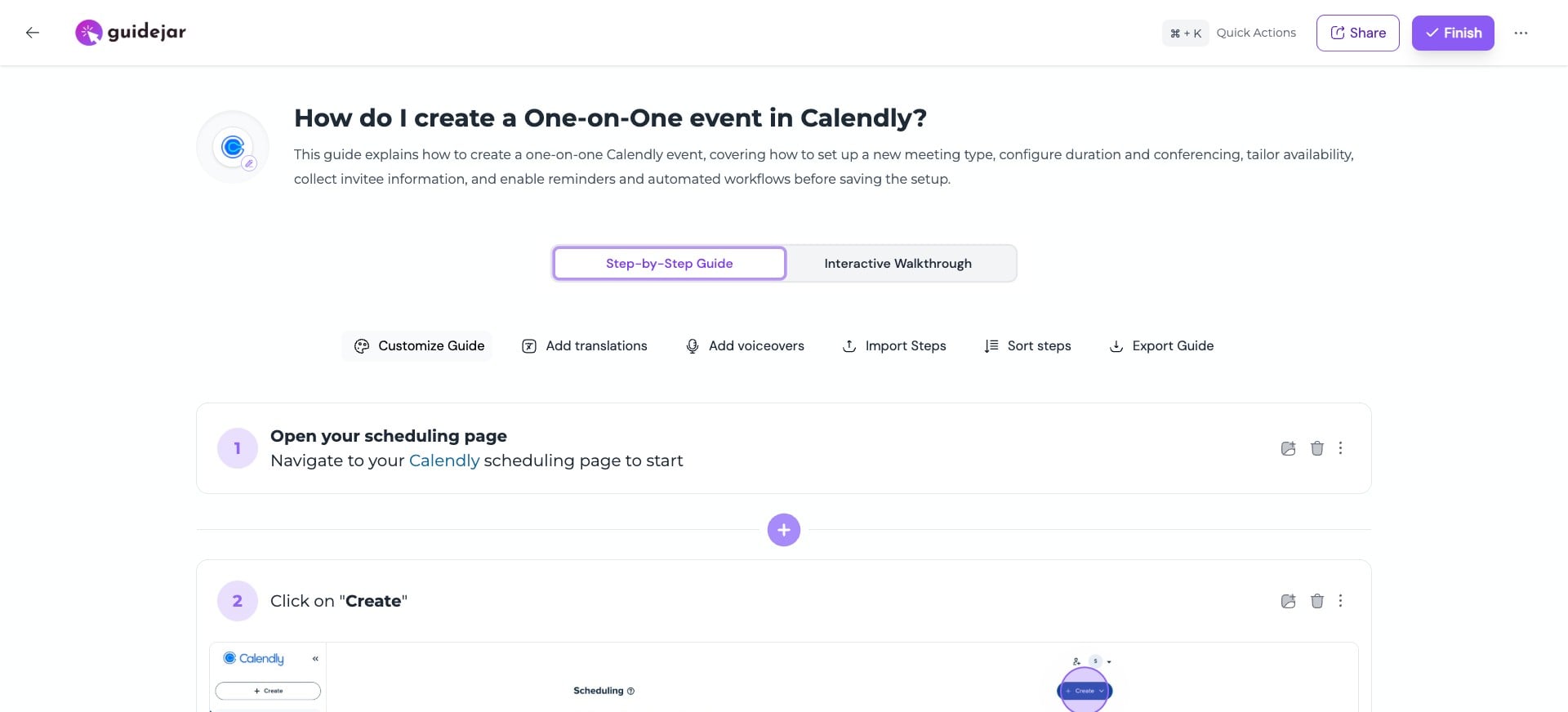
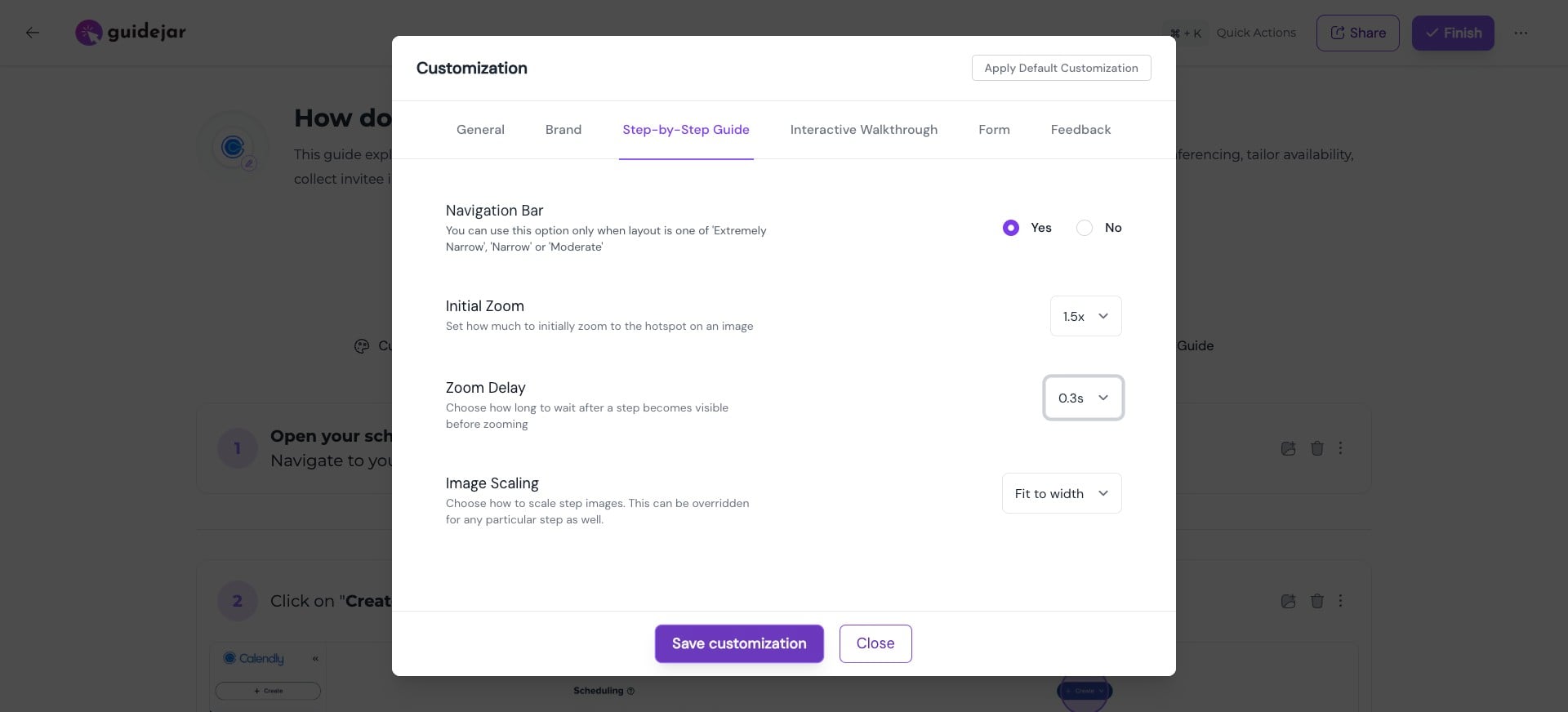
Go to "Customize Guide"

2
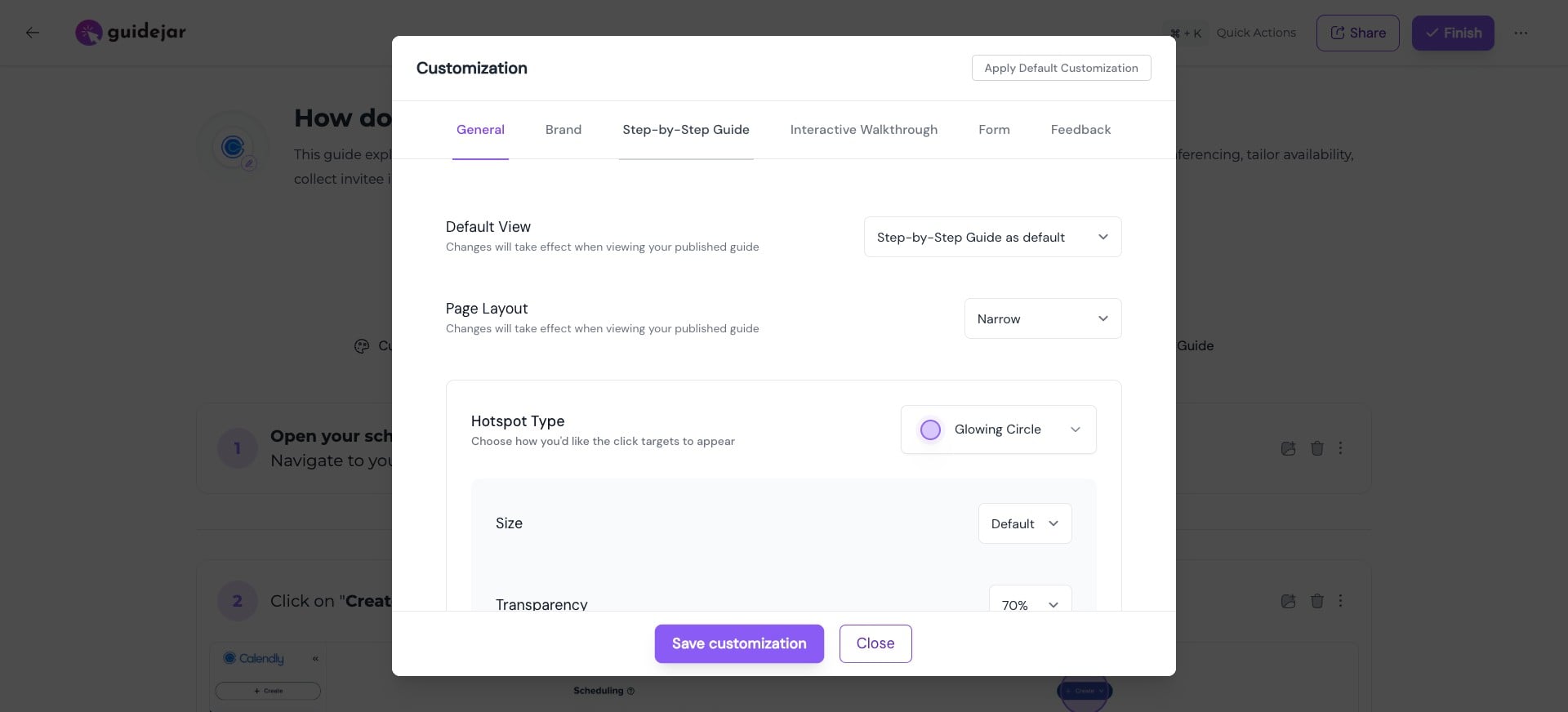
Click on "Step-by-Step Guide"
3
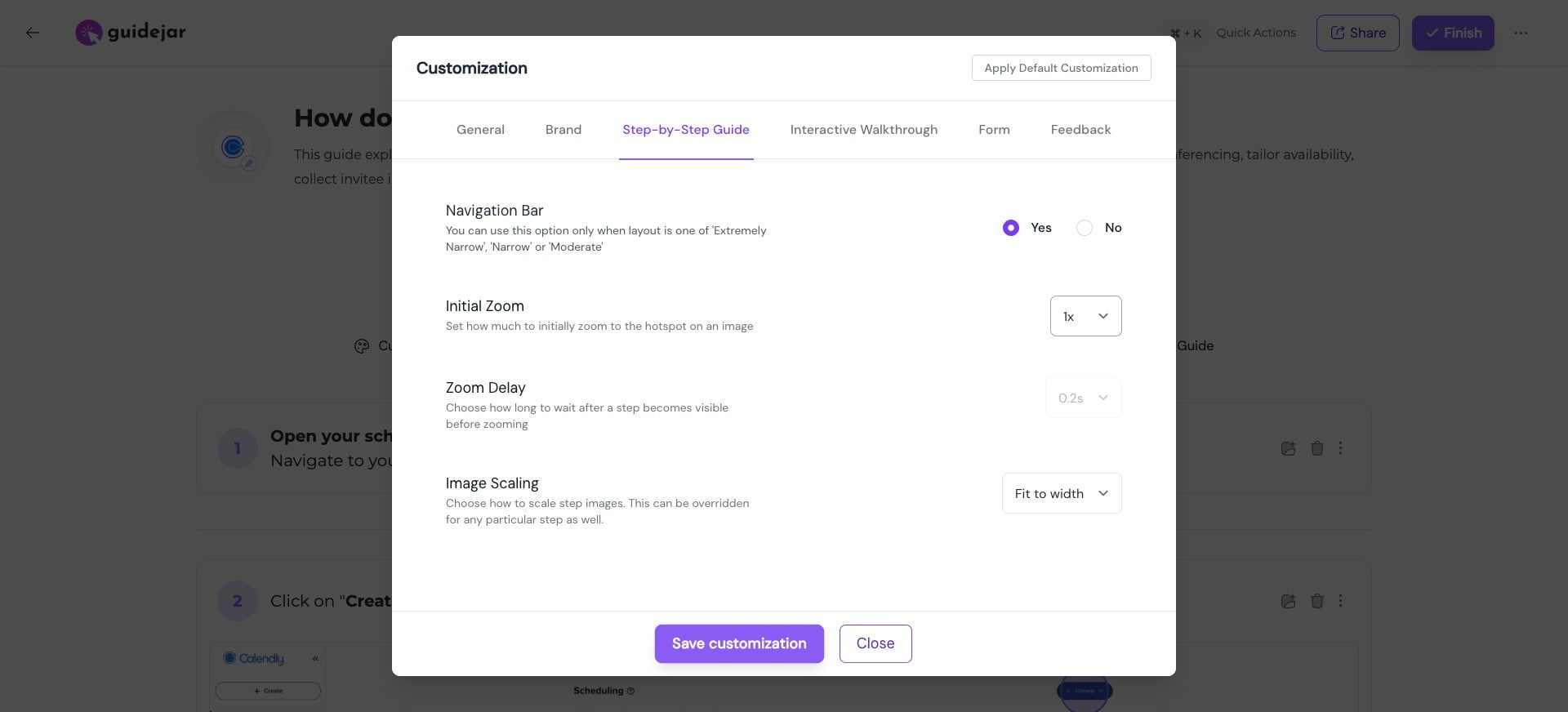
You can set the initial zoom here (for e.g., 1.5x, 2x)
4
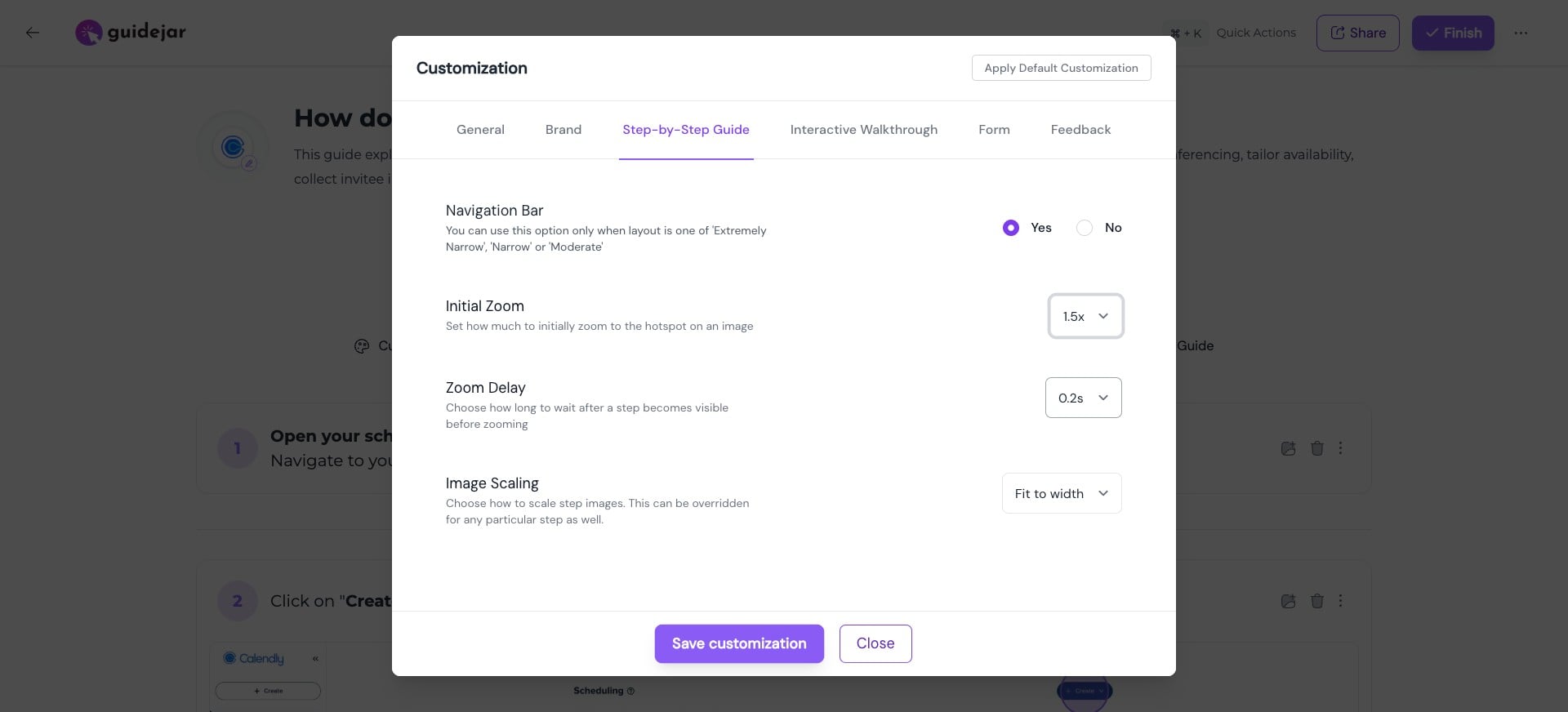
You can also set a zoom delay—choose how long to wait for the zoom to be applied after a step comes into view.
5
Once you're done, click on "Save customization"
6
The system automatically pans to the hotspot. However, if needed, you can change the pan manually by dragging the image. Remember to click on "Save Pan" once you're done.
0:00 / 0:06
7
Watch how the effects are applied—see how the focus adjusts and guides attention to the key areas.
0:00 / 0:07
8
Users can still manually zoom in or out while viewing the guide
0:00 / 0:05