How do I trim a video?
Learn how to trim a video to remove unwanted parts and keep only what matters
Apr 13, 2026●
1
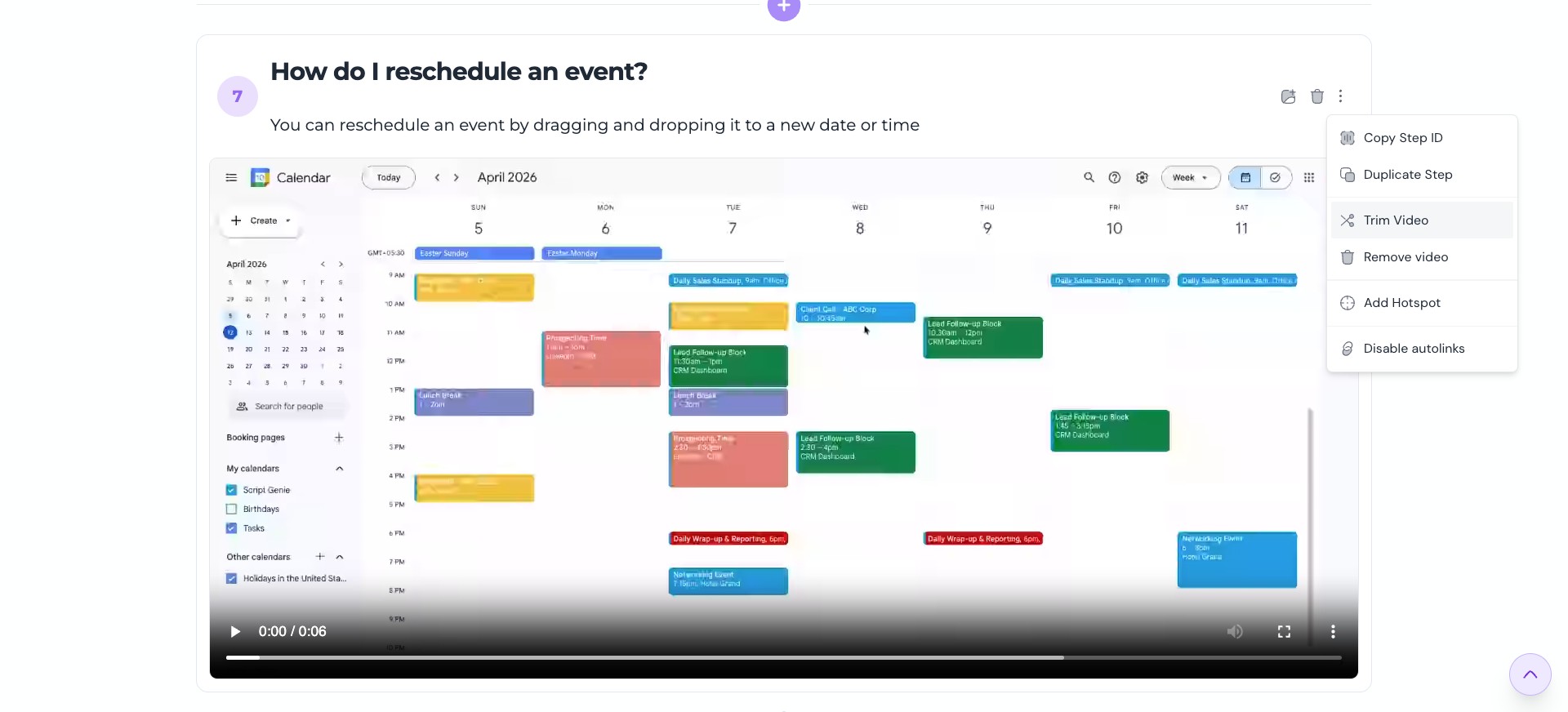
Open the guide editor and go to the step with the video you want to trim. Then click on More icon > Trim Video

2
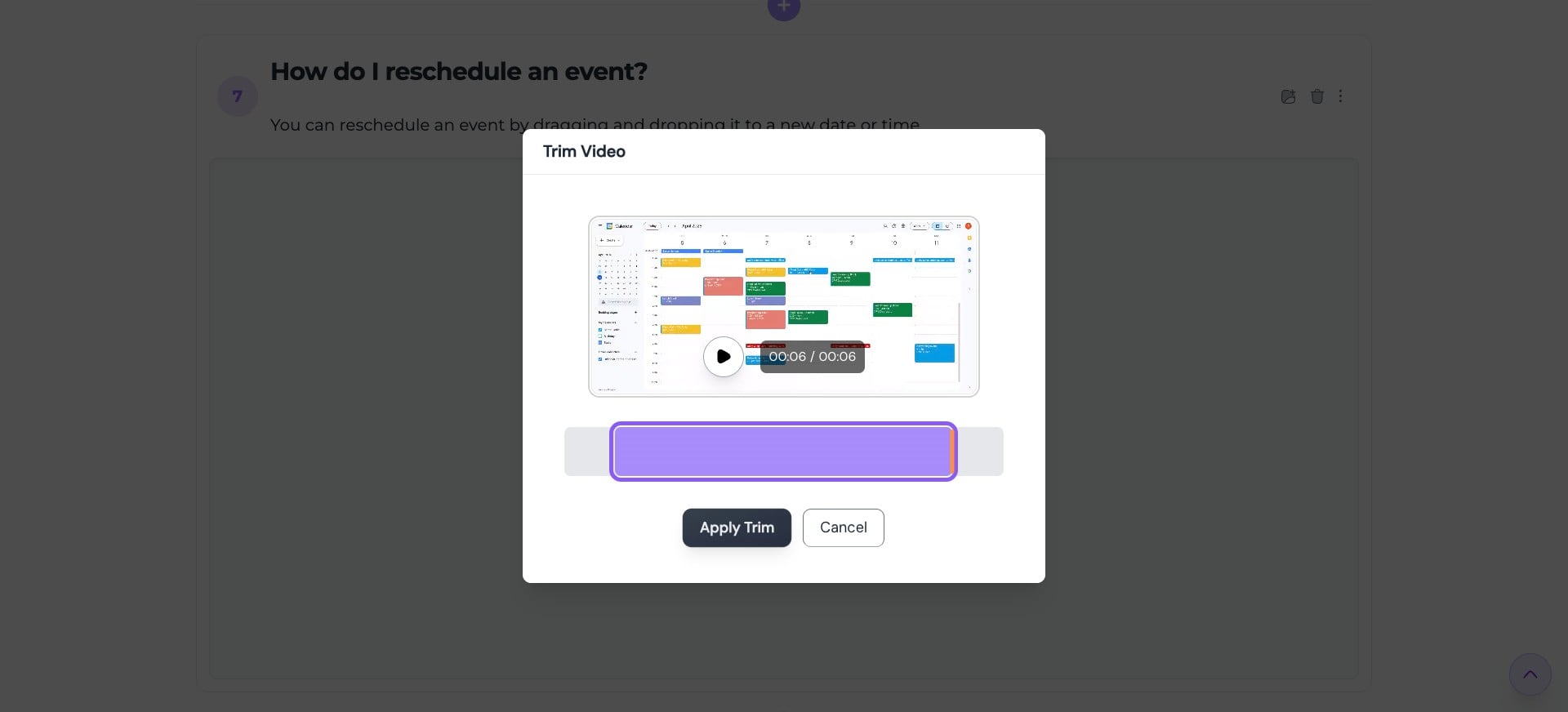
Drag the trim handles to set where the video should begin and end. You can play the video to make sure the trimmed section looks right.
0:00 / 0:10
3
Then click on "Apply Trim"
4
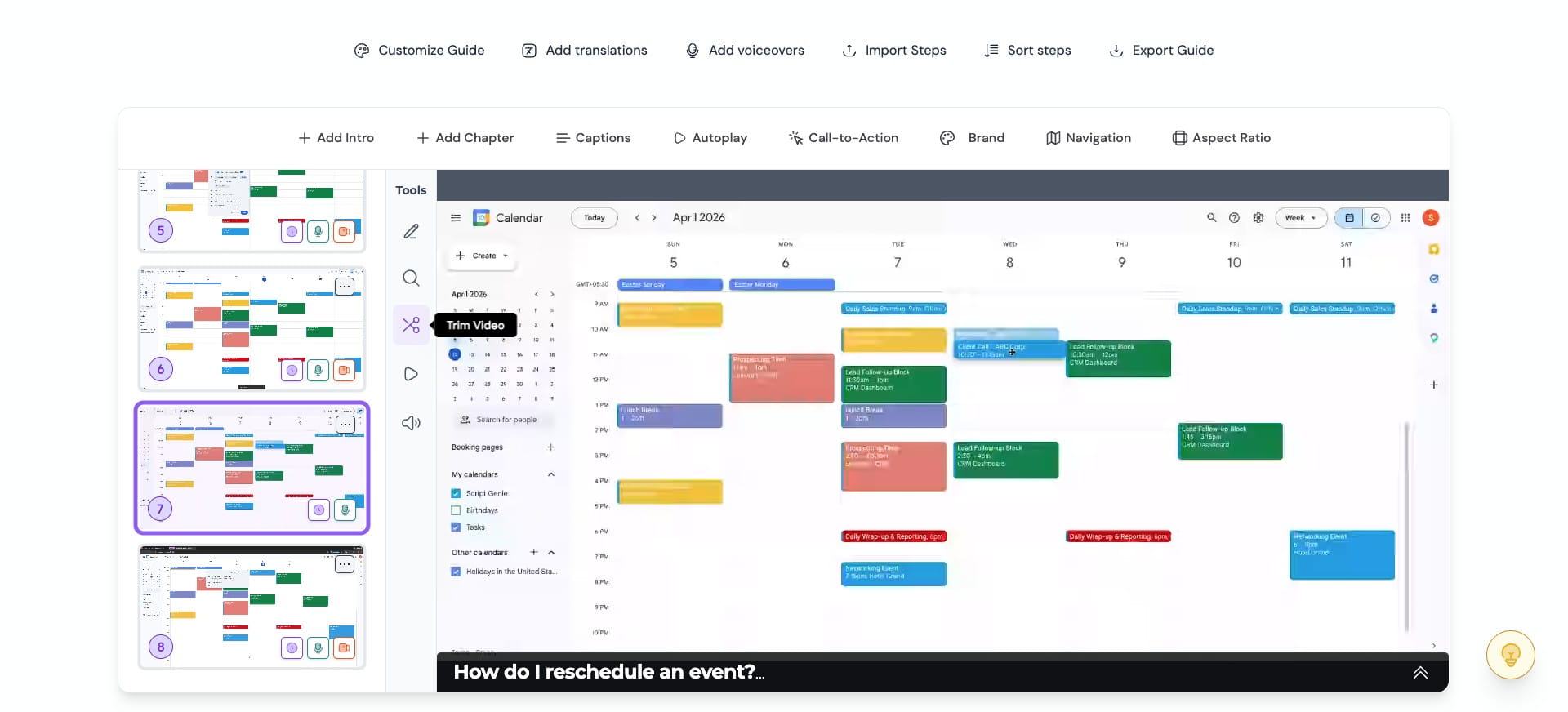
Alternatively, if you're using the interactive walkthrough editor, you can simply click the Scissors icon under the tools to trim the video.