
How do I optimize a guide for mobile viewing?
Learn to control how text appears on smaller screens in interactive walkthroughs to improve readability and user experience
In interactive walkthroughs, mobile optimization is enabled by default — text bubbles are hidden and shown as a subtitle bar at the bottom for better readability on smaller screens or when the embed area is too narrow.
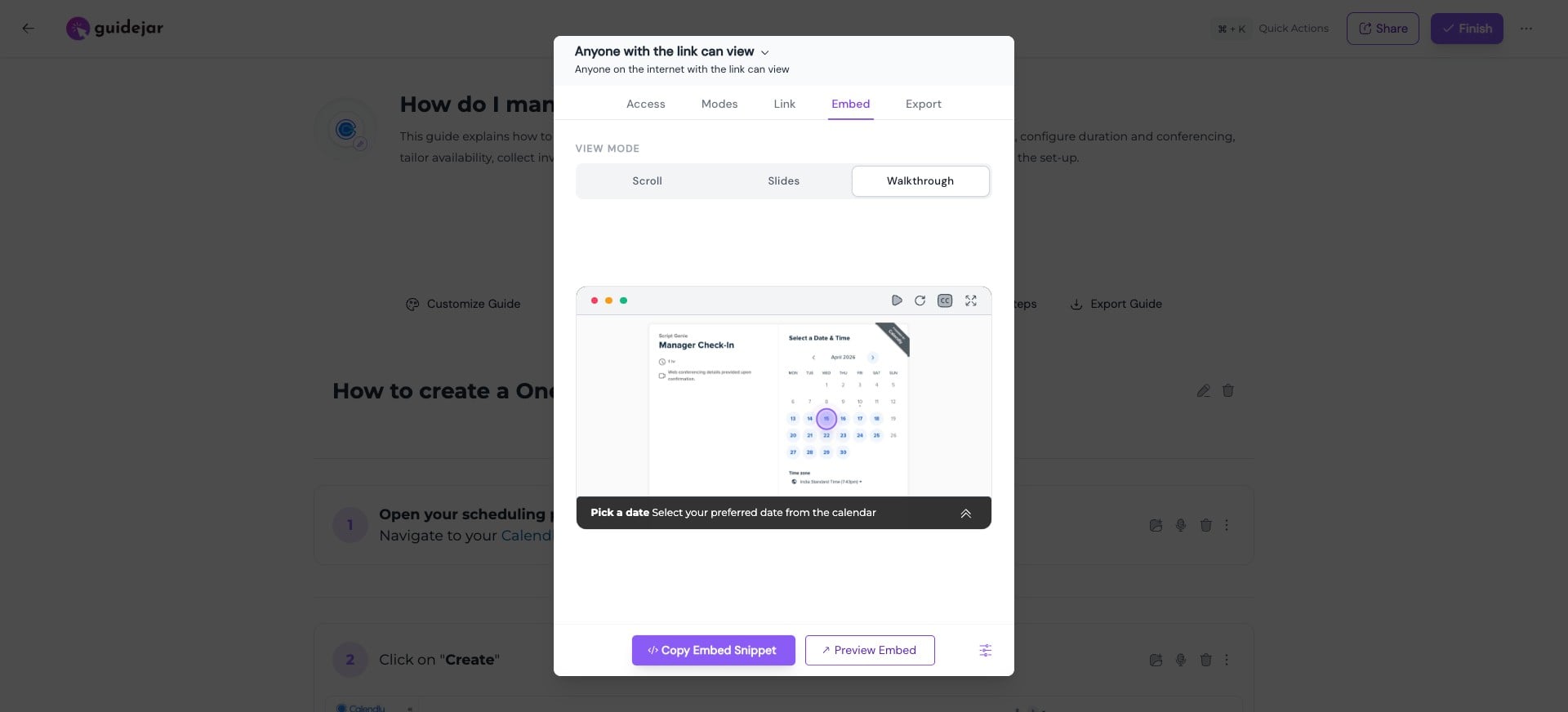

You can turn this off if you prefer to keep the text bubble everywhere. Open the guide editor and click on "Customize Guide".
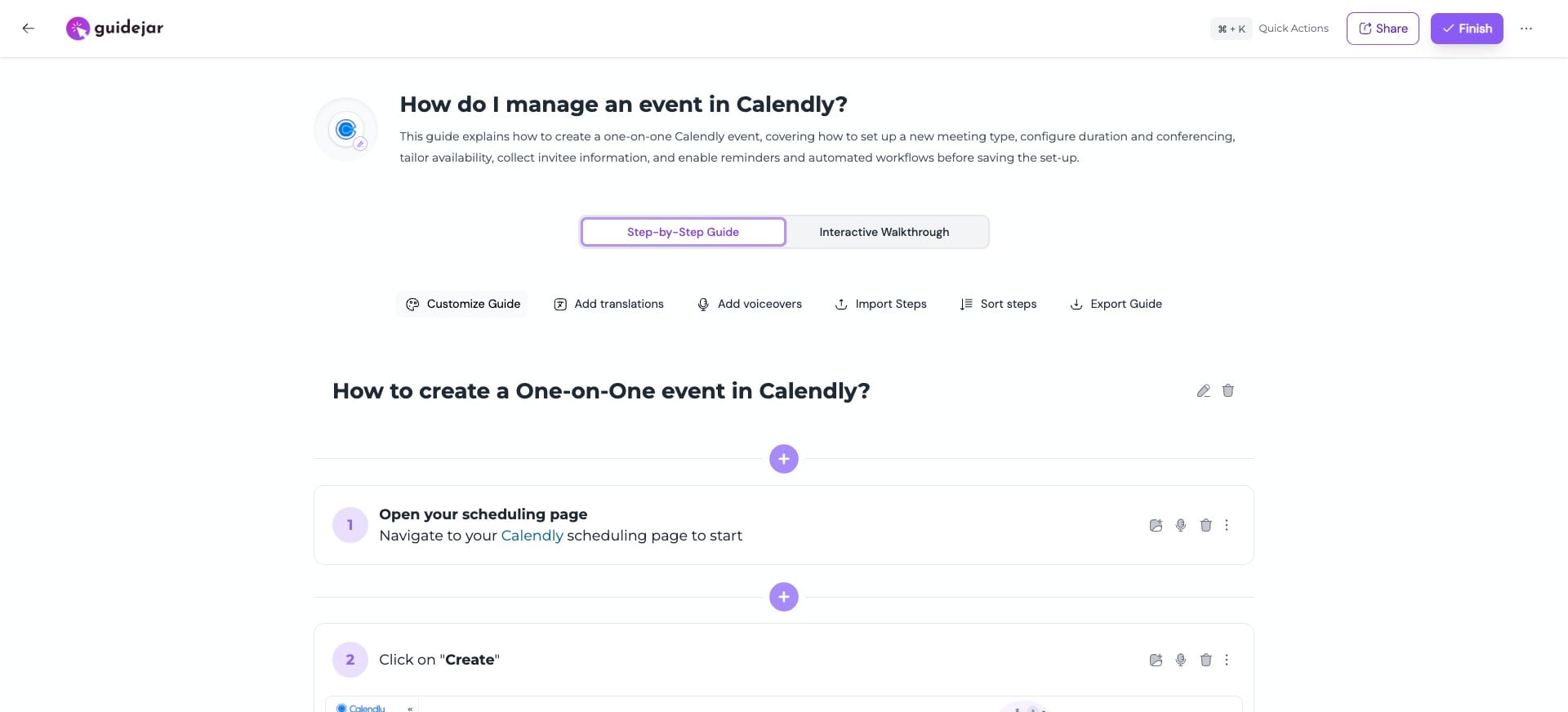
Click on "Interactive Walkthrough"
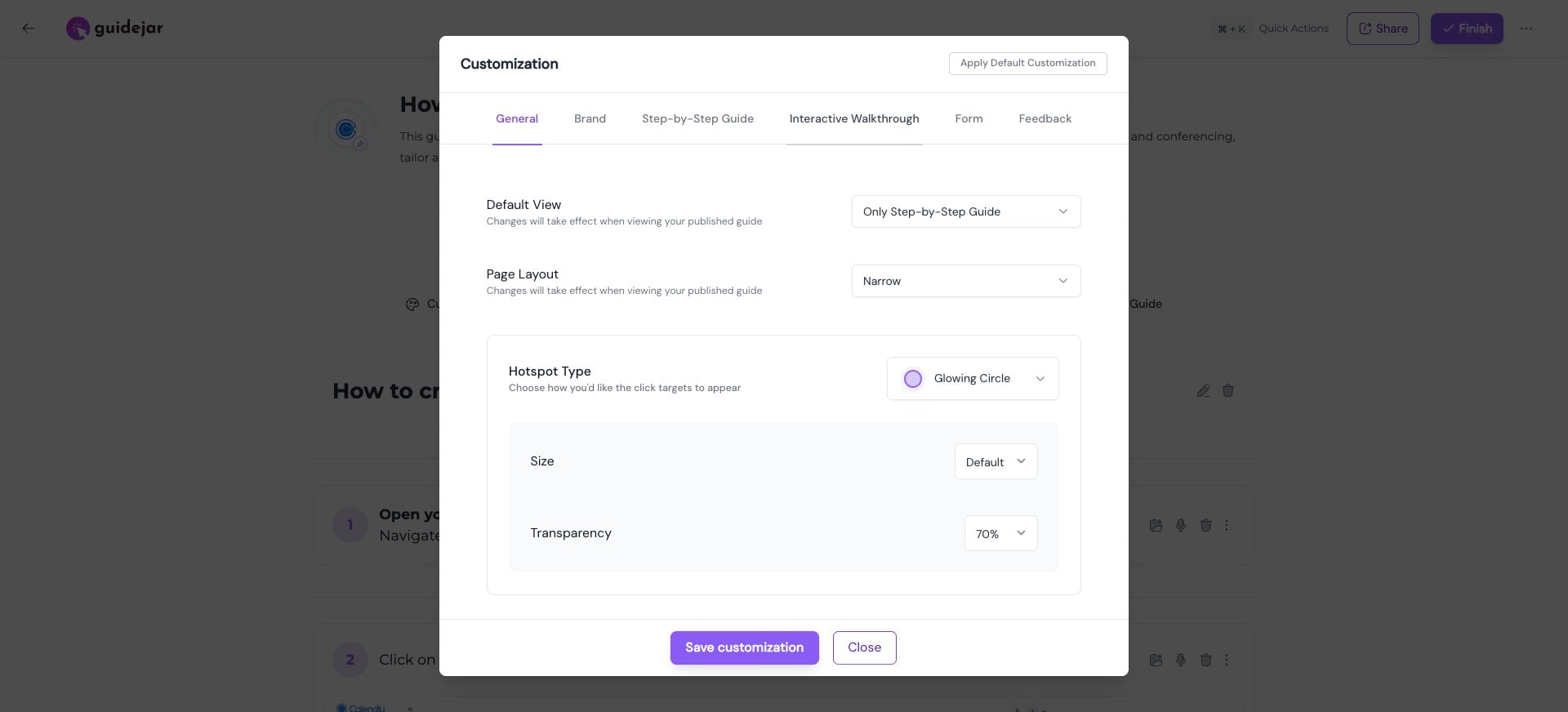
Turn off “Optimize for mobile”
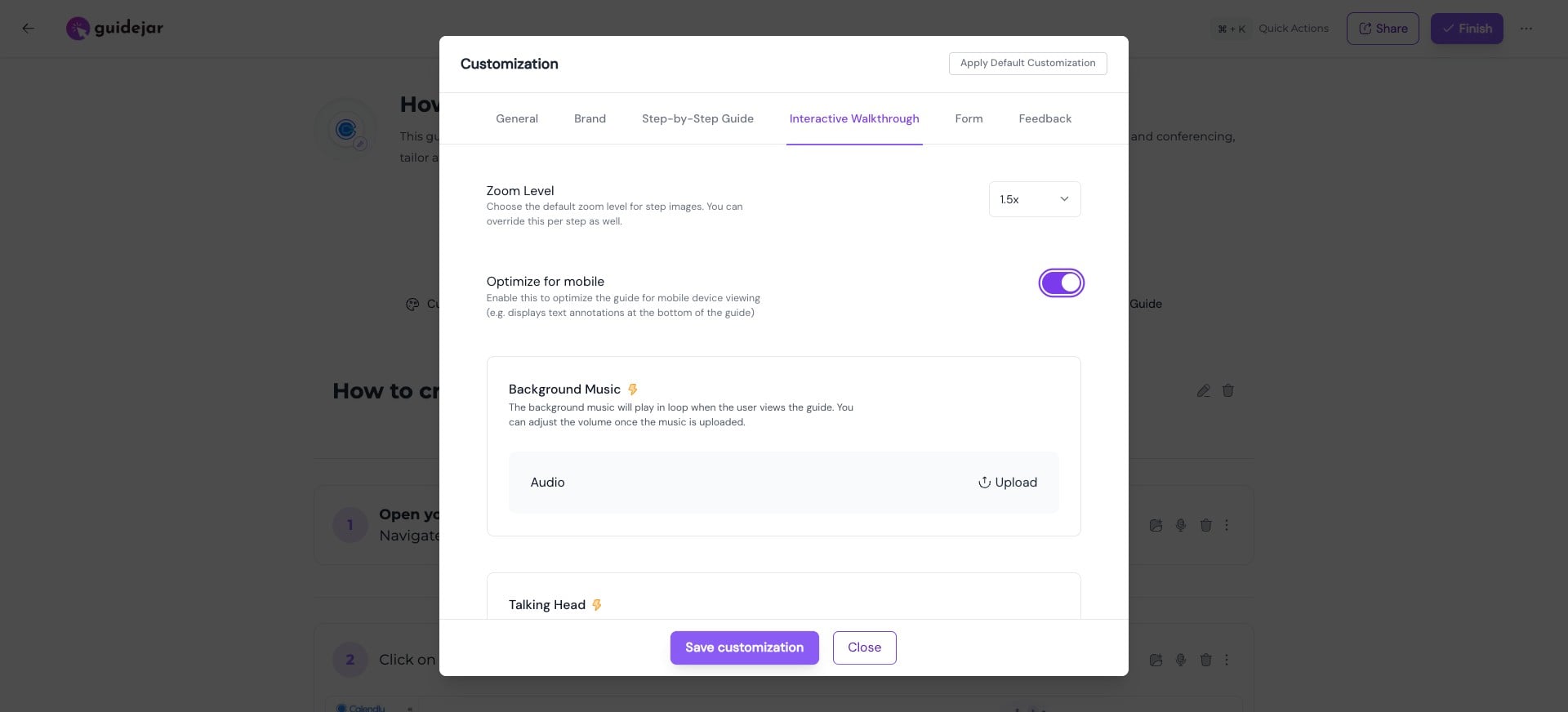
Click on "Save customization"
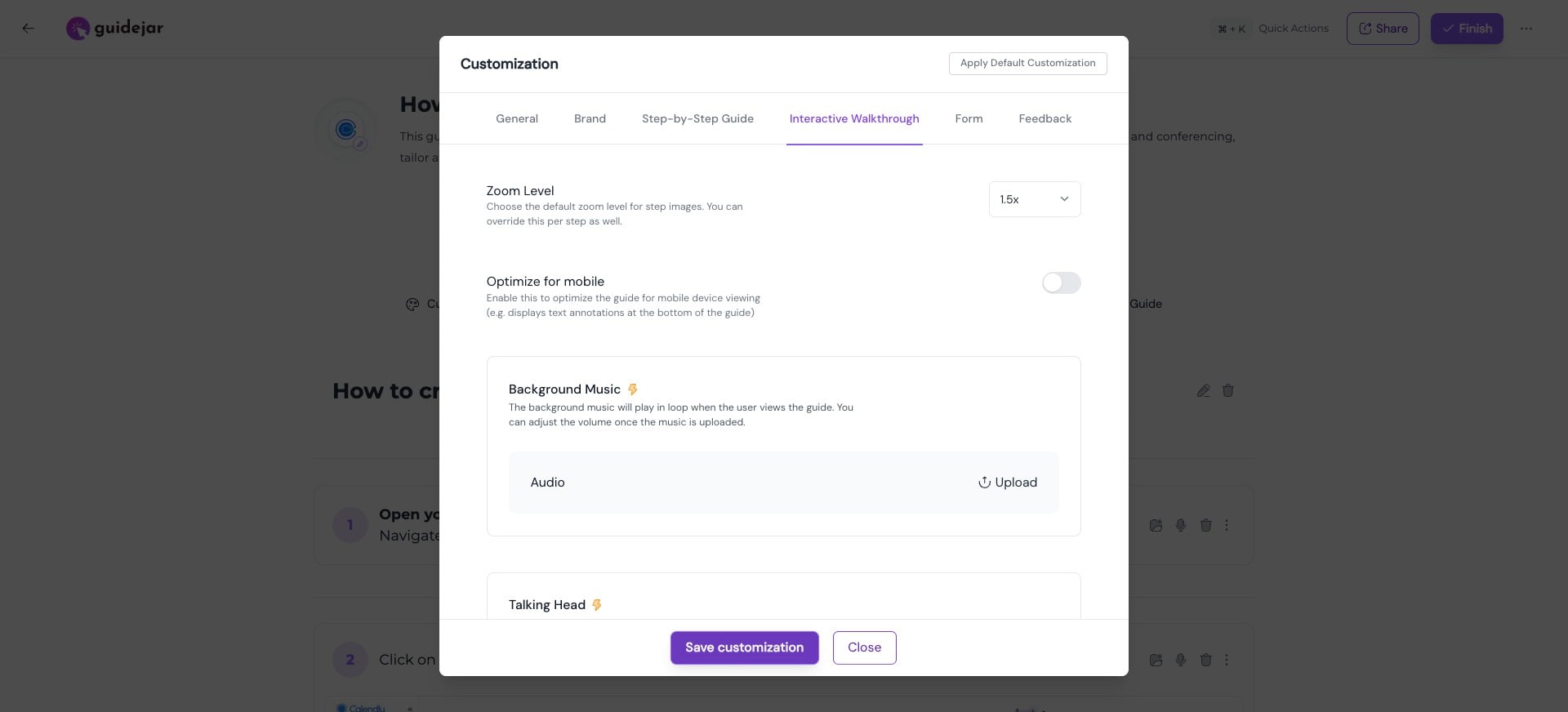
After turning it off, annotations will always be shown inside text bubbles.
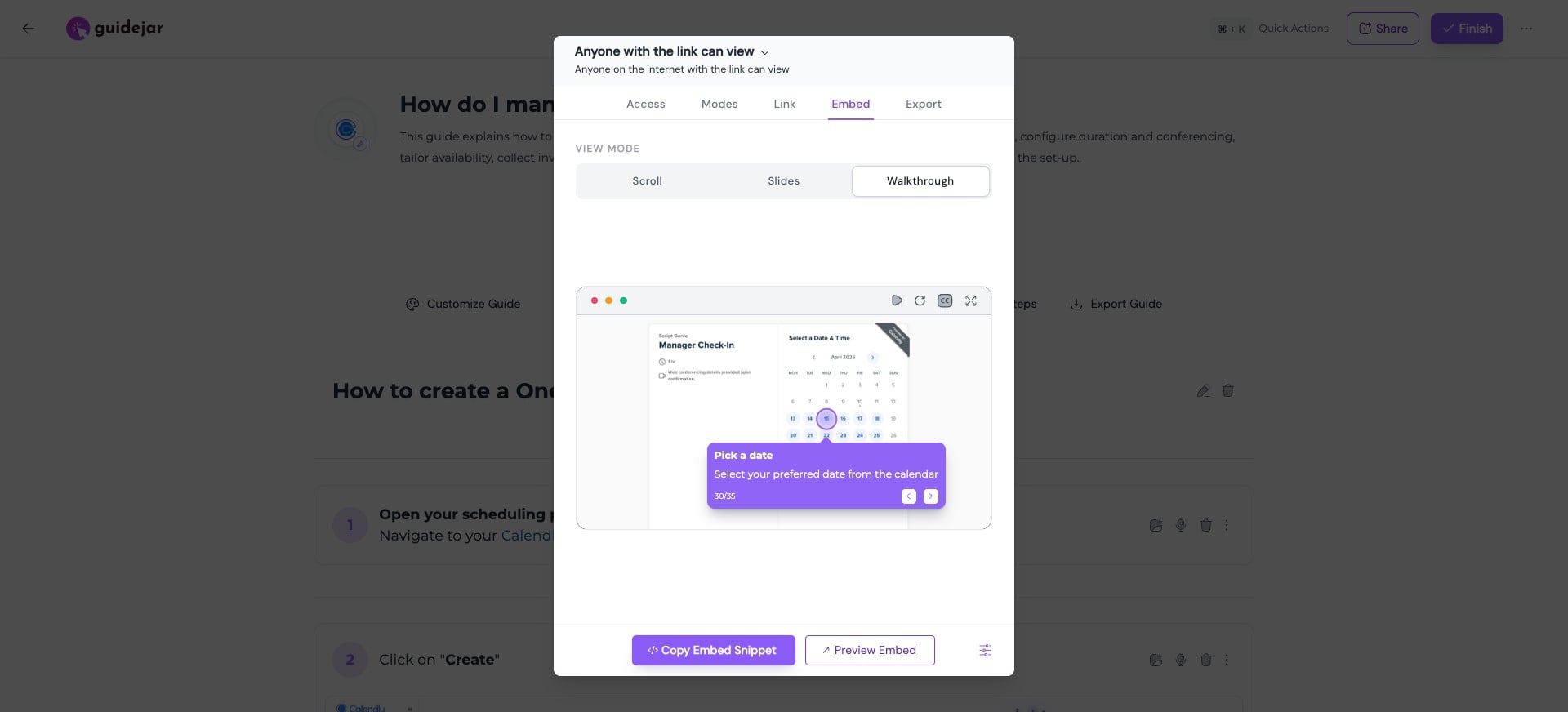
Frequently asked questions
- Why am I not seeing the text bubble on mobile or in embeds?
By default, mobile optimization is enabled for interactive walkthroughs. The text bubble is hidden on smaller screens and shown as a subtitle bar at the bottom to improve readability and avoid clutter. If you want to stick with text bubbles, you can turn off “Optimize for mobile" from the guide’s customization settings.