
How do I capture a video step in my guide using the Chrome extension?
Record workflows as short videos during capture and automatically add them as steps to make your guide clearer and easier to follow
Use a video step when you want to document a process that involves complex interactions that screenshots can’t clearly explain. For example, scrolling through a page, typing into fields, drag-and-drop actions, hover effects, or navigating multi-step menus.
During the screen recording, open the extension and click on “Capture a video step"
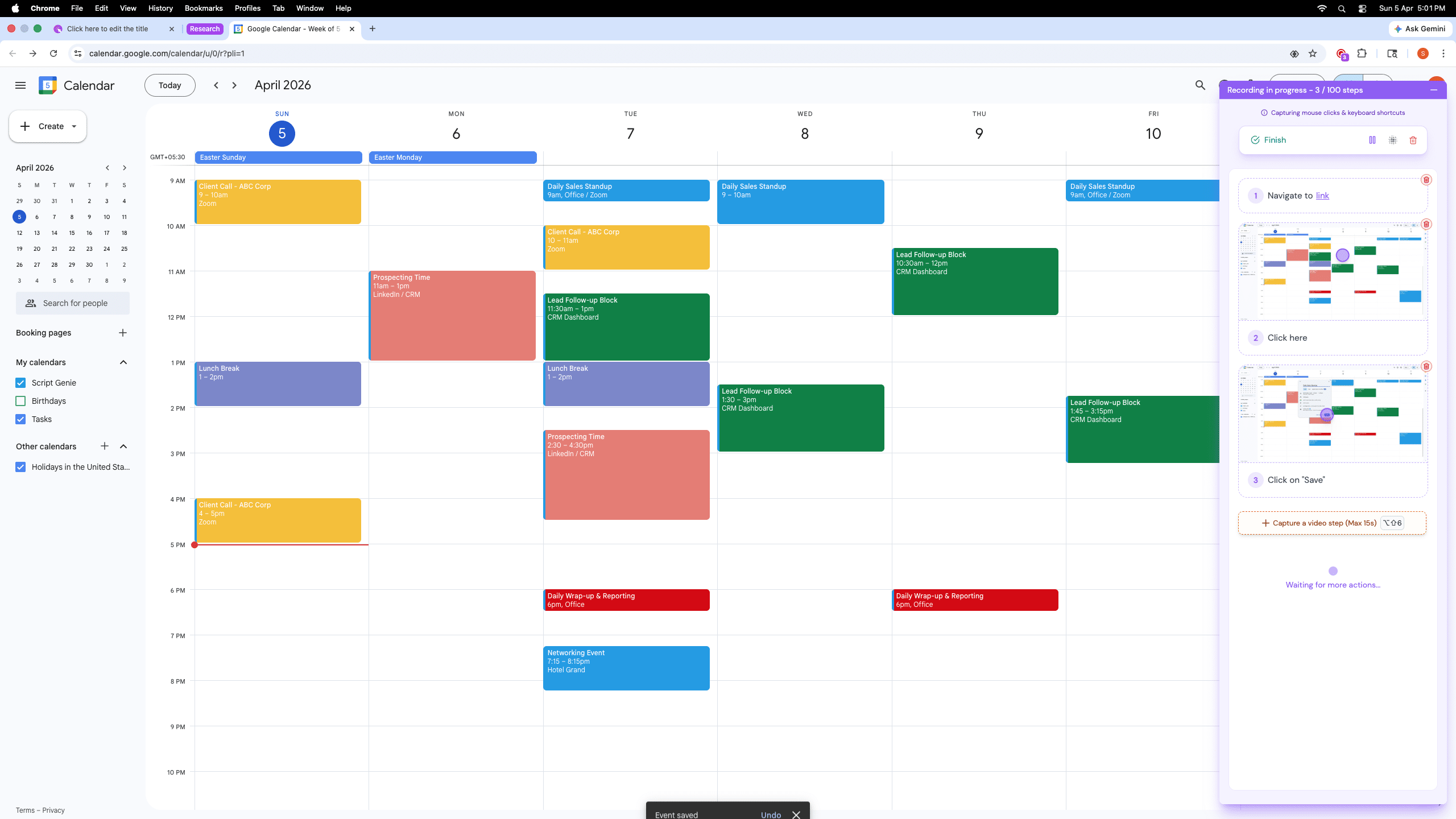
Each video step is limited to a maximum of 15 seconds
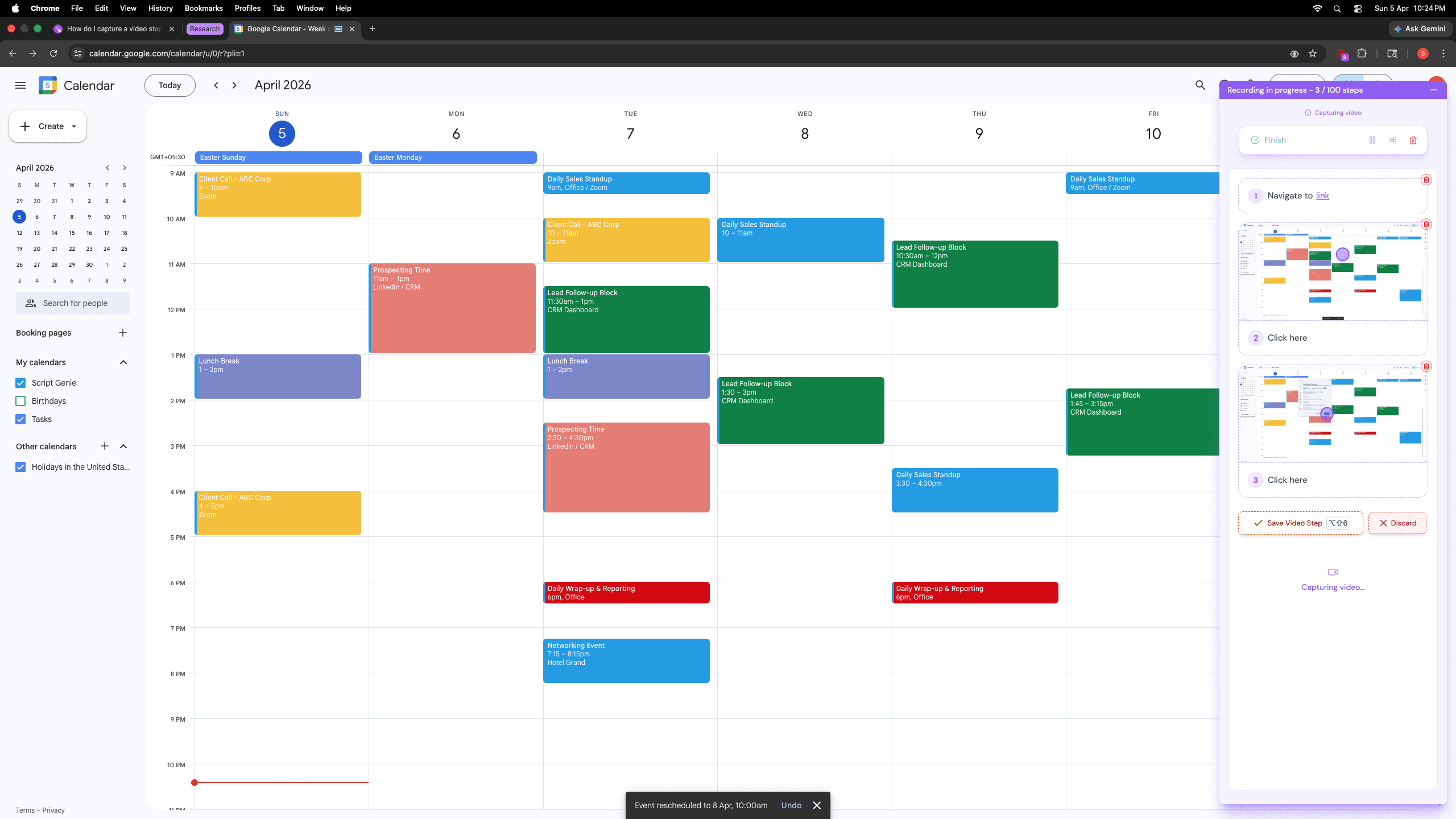
Recording starts after a 3-second countdown. Then perform the action you want to capture (for e.g., drag & drop to reschedule an event in Google Calendar). Note: You do not have to close the extension popup. It will close automatically after the countdown.
Click “Save Video Step”, or it will be saved automatically after 15 seconds
The process video is now automatically included as a step in your guide
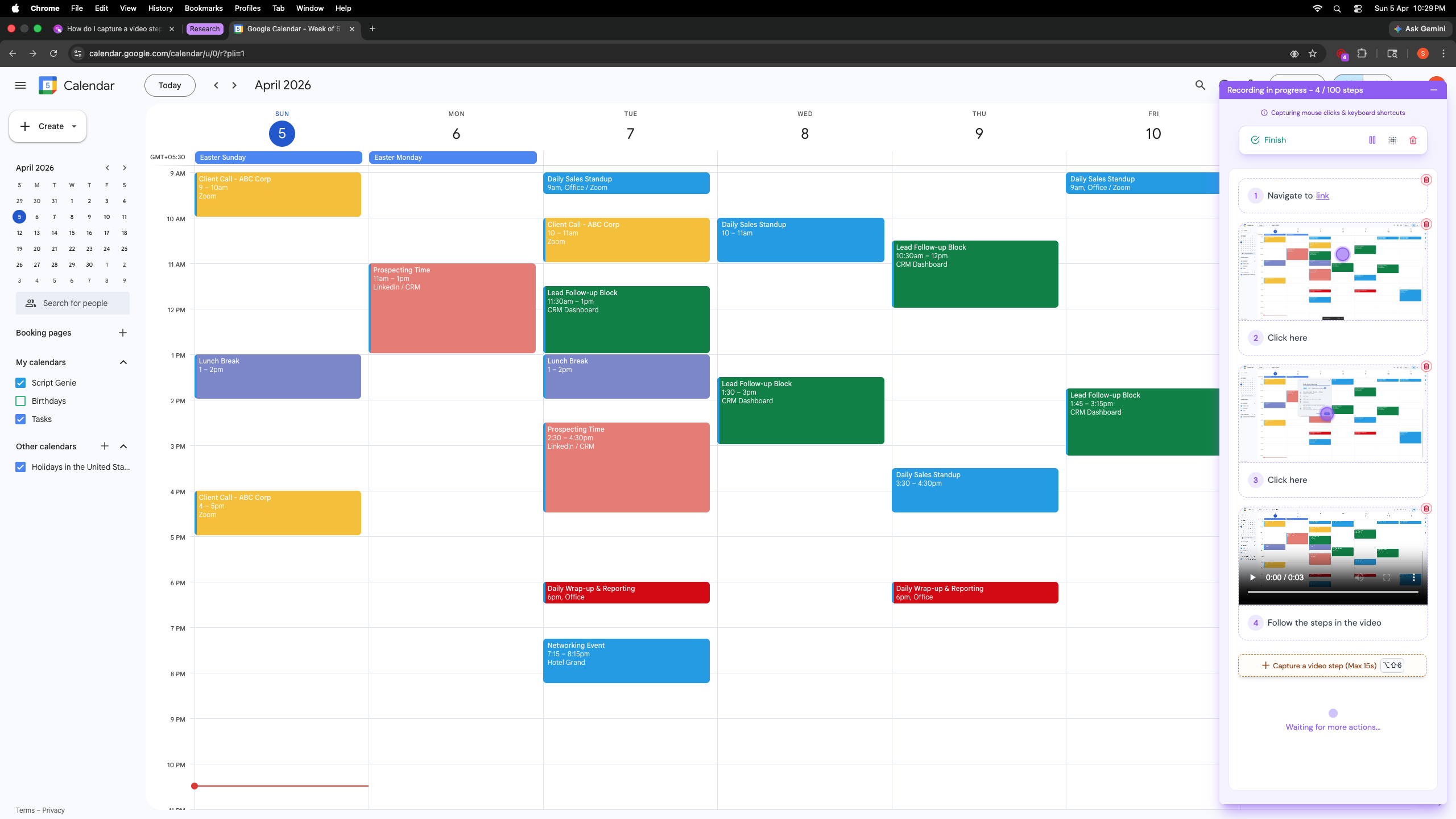
Save your guide and see your video step in action 🎉
Frequently Asked Questions
- When should I use a video step instead of screenshots?
Include a video step when documenting processes that involve complex interactions that screenshots can’t fully convey. For example, scrolling a page, typing into fields, drag-and-drop actions, hover effects, or navigating multi-step menus.