
Add AI Voiceovers to guides
Learn how to add AI voiceovers for your guides using realistic AI voices. Customize narration, replace individual voiceovers, and create engaging guided experiences for training, onboarding, and product demos.
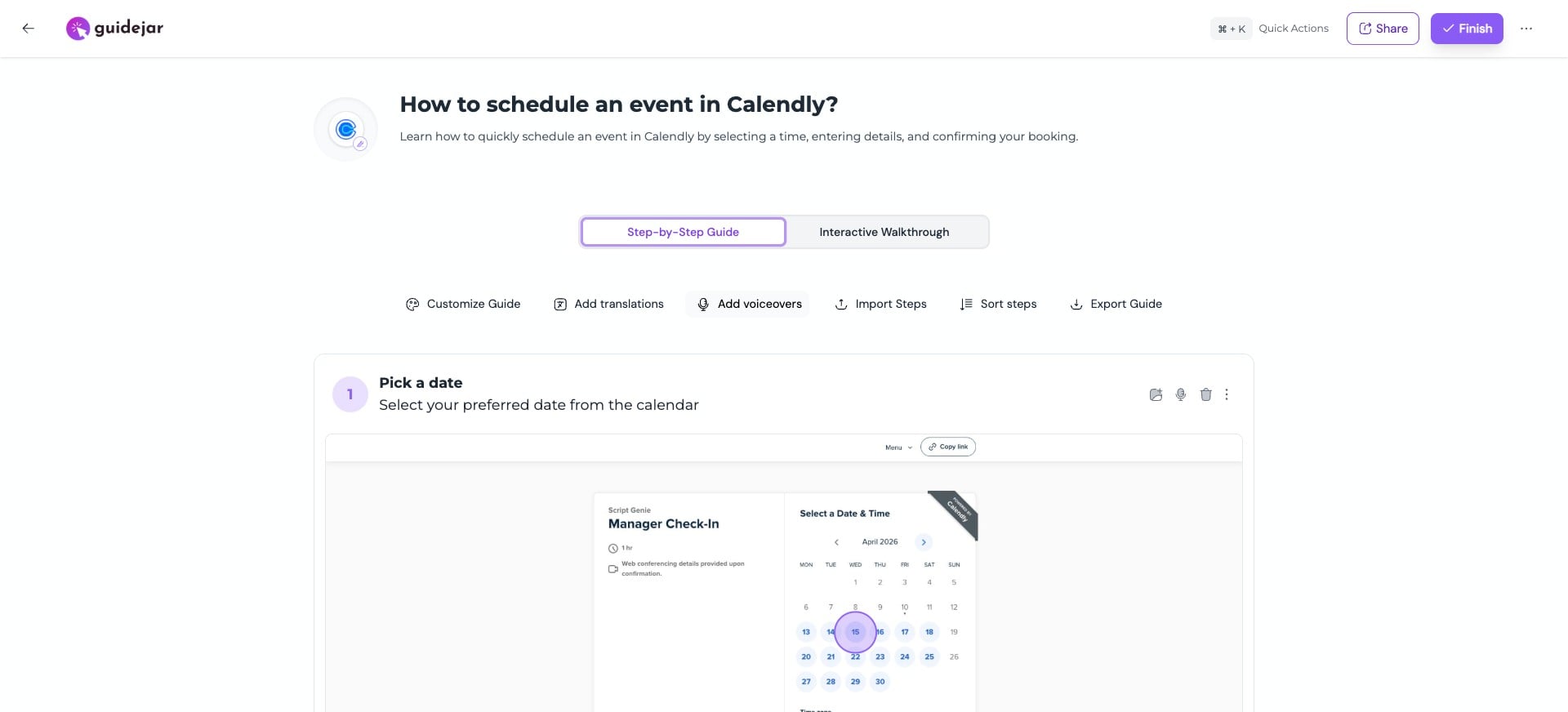
Open the guide editor and click "Add Voiceovers" to generate AI narration for your guide

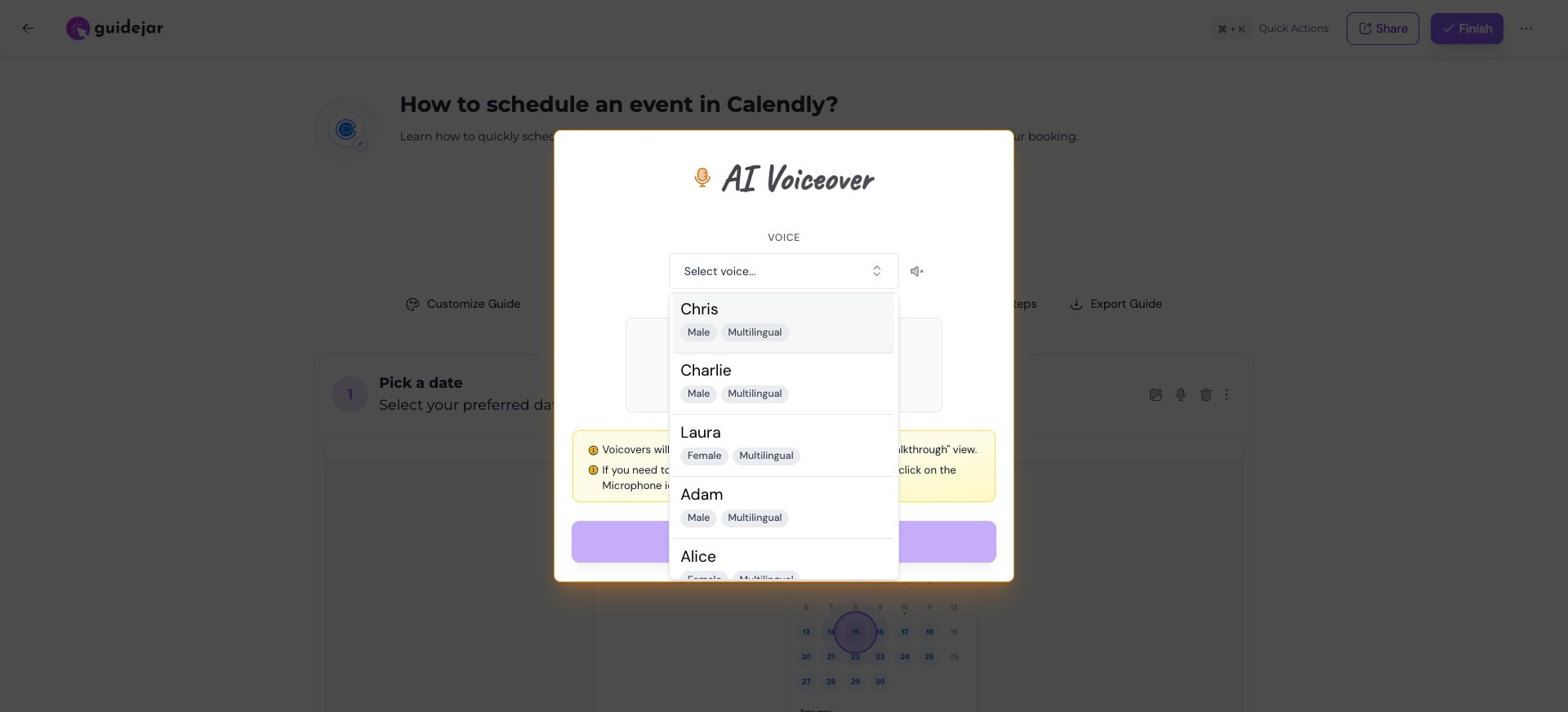
Browse the available AI voices and select the one that best matches your audience and content
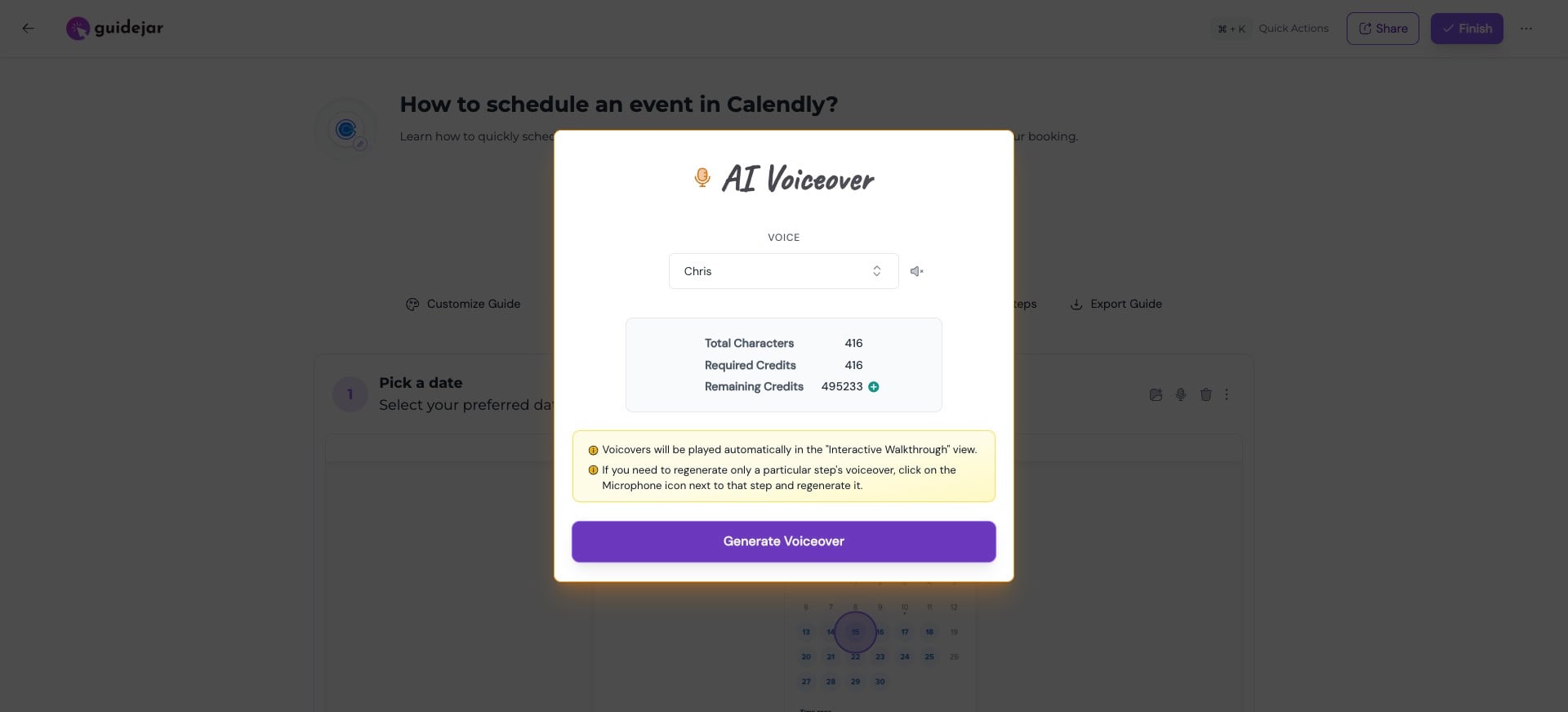
Click "Generate Voiceover" to create narration for all steps in the guide
Voiceover generation happens in the background and may take a few minutes. You can safely leave or close the page and return later.
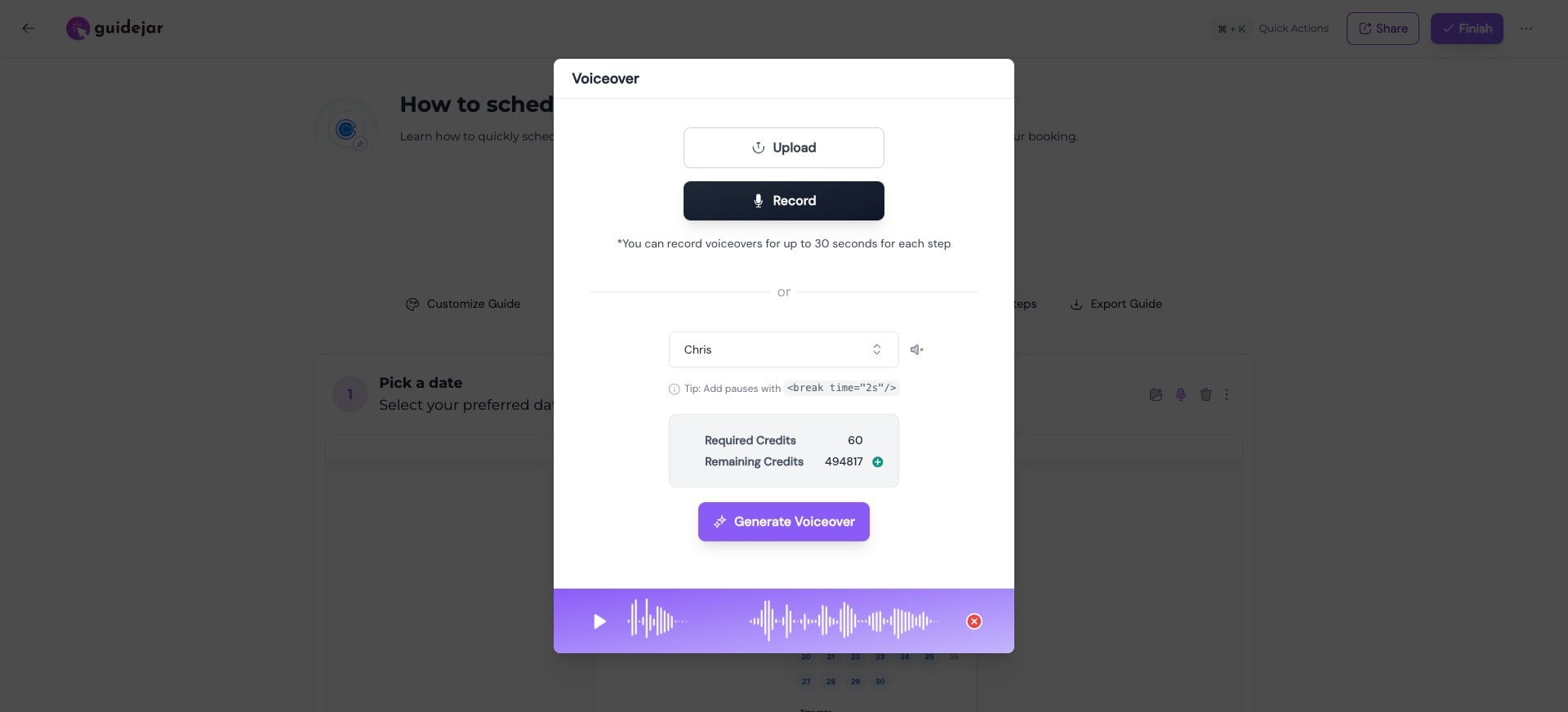
If you want to modify the voiceover for a particular step, click the Mic icon next to the step
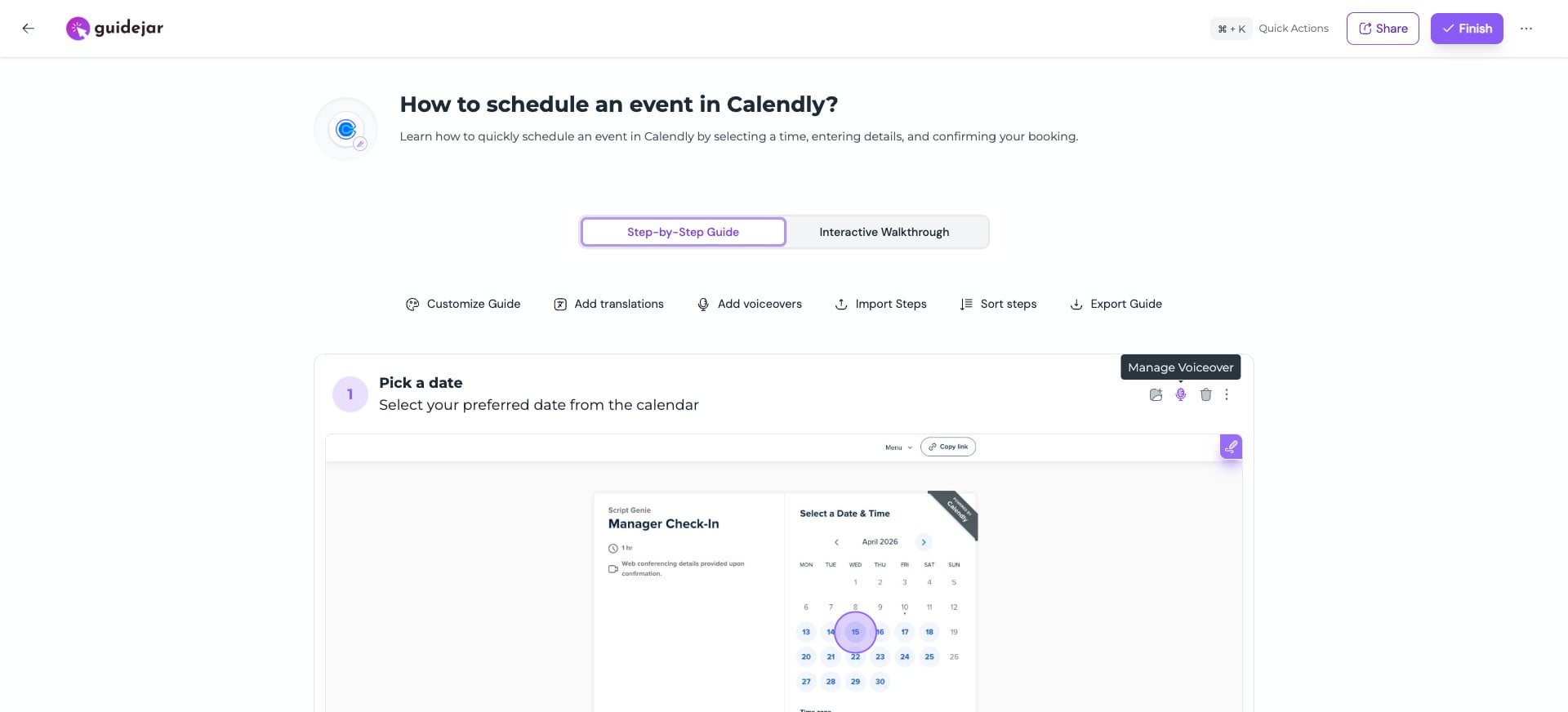
You can upload an audio file, record your own voice, or regenerate the AI voiceover for that step
If you want the voiceover to say something different from the visible step description, you can provide a custom voiceover script for that step. Once that's done, click the Mic icon next to that step and re-generate the voiceover.
Want to see the final result? Open this example guide to experience AI voiceovers in action.